
Steps
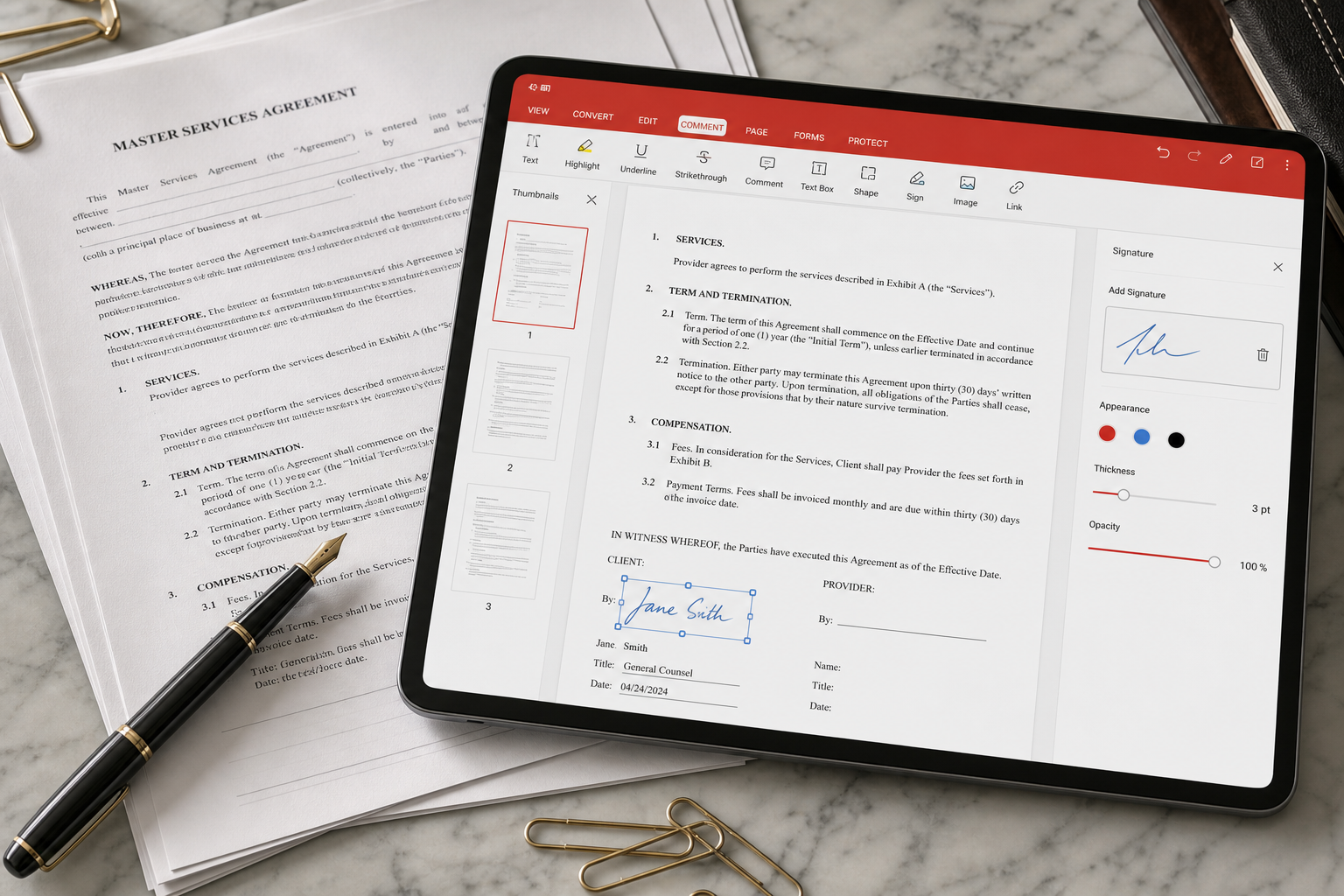
- Open the PDF in WPS (double-click if PDF is associated, or File → Open).
- Find Convert / PDF to Word / Export. Names move slightly between versions.
- If the file is a scan, run OCR first - Latin scripts work better than decorative display fonts.
- Preview. If page 1 is garbage, Premium will not magically understand a photographed whiteboard.
- Save as .docx. Apply Heading styles. Delete extra text boxes.
Quality expectations
- Text-based PDF from Word: usually good.
- Slides exported to PDF: watch for stacked text.
- Phone photo of a contract: poor. Reshoot flat, then OCR.
- Right-to-left or mixed CJK: test two pages before you buy a month of Premium.
If the PDF will not even open, jump to PDF not opening instead of converting.
Cleanup you should budget
Even a good conversion needs Heading styles reapplied. Extra text boxes are normal on invoices. Headers that were graphics will not become real headings. If the first page is garbage, Premium will not understand a photographed whiteboard.
Right-to-left and mixed CJK documents deserve a two-page test before you buy a month.
WPS Office PDF to Word: expectations
Born-digital PDFs from Word convert well. Slide PDFs stack text. Phone photos need a flat reshoot plus OCR. Users often report a small free page cap; your dialog is authoritative. Budget time to reapply Heading styles. If page one is garbage, Premium will not save a whiteboard photo.
When to stay in PDF
If you only need a date changed or a signature, edit in the PDF toolkit instead of converting. Conversion is for files you must rewrite as a document.